

Dashboard
Copy pageWhen running agents in multiple worktrees across many projects, it’s helpful to have a centralized view of what each agent is doing. The dashboard provides a TUI for monitoring agents, reviewing their changes, staging hunks, and sending commands.
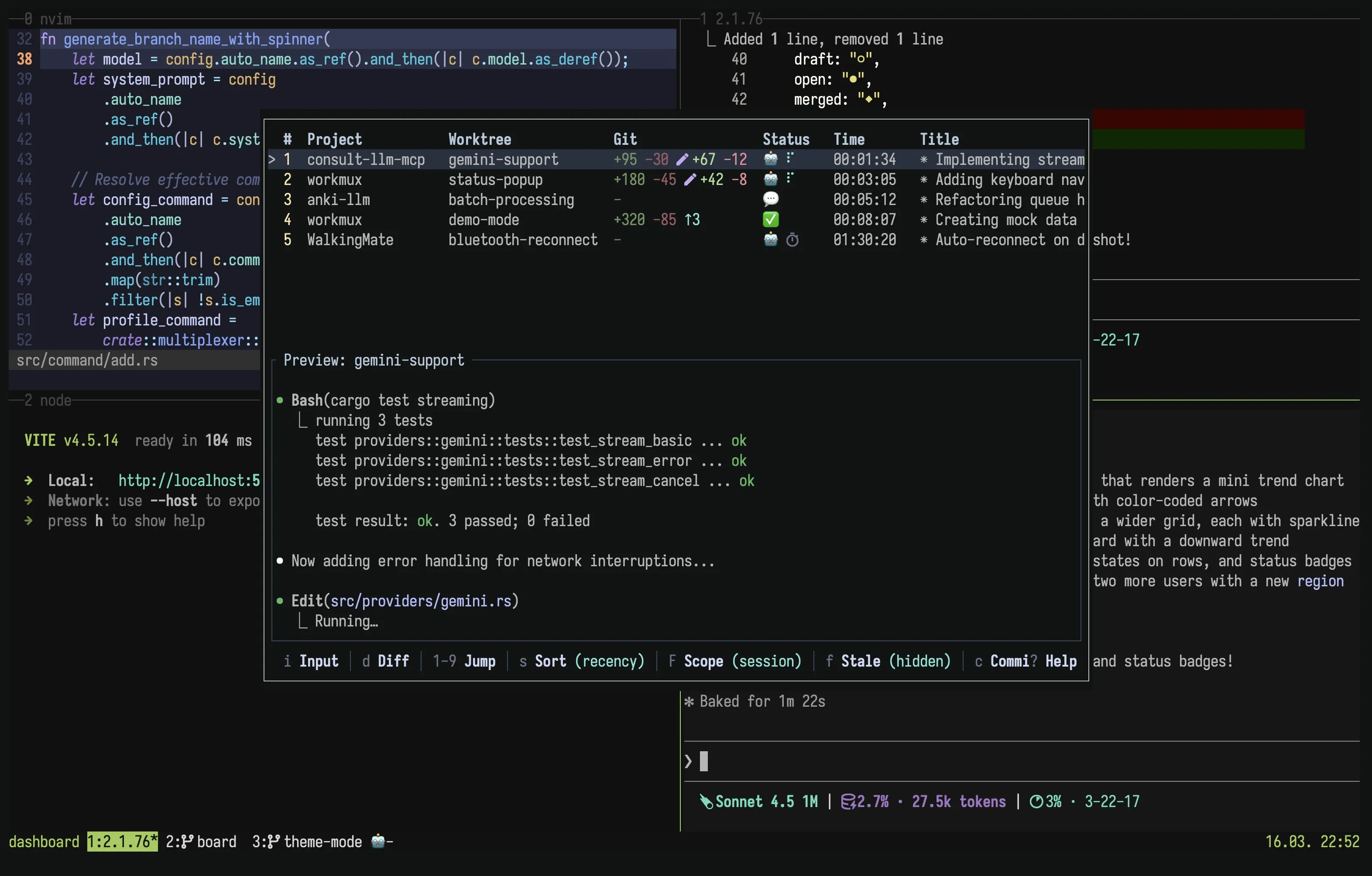
For an always-visible, non-intrusive alternative, see the sidebar.
Add this binding to your ~/.tmux.conf:
bind C-s display-popup -h 30 -w 100 -E "workmux dashboard"Then press prefix + Ctrl-s to open the dashboard as a tmux popup. Feel free to adjust the keybinding and popup dimensions (-h and -w) as needed.
See command reference for CLI options.
The dashboard has two views, toggled with Tab:
- Agents: Shows all running agent panes with their status, git info, GitHub branch checks, and live terminal preview
- Worktrees: Shows all git worktrees with branch, PR status, GitHub branch checks, and agent summary. Press
rto remove a worktree (kills agent, removes worktree, deletes branch).
Keybindings (Agents view)
Section titled “Keybindings (Agents view)”| Key | Action |
|---|---|
1-9 |
Quick jump to agent |
Tab |
Switch to worktree view |
Bksp |
Toggle between current and last agent |
d |
View diff (opens WIP view) |
o |
Open PR in browser |
O |
Open PR checks in browser |
p |
Peek at agent (dashboard stays open) |
s |
Cycle sort mode |
F |
Toggle session filter |
f |
Toggle stale filter (show/hide stale) |
i |
Enter input mode (type to agent) |
X |
Kill selected agent |
R |
Sweep (bulk remove merged/gone) |
Ctrl+u |
Scroll preview up |
Ctrl+d |
Scroll preview down |
+/- |
Resize preview pane |
Enter |
Go to selected agent |
/ |
Filter agents by name |
j/k |
Navigate up/down |
T |
Cycle theme |
: |
Open command palette |
q |
Quit |
Ctrl+c |
Quit (works from any view) |
Agent jumps close the dashboard by default. See close_on_jump to keep it open.
Keybindings (Worktrees view)
Section titled “Keybindings (Worktrees view)”| Key | Action |
|---|---|
1-9 |
Quick jump to worktree index |
Tab |
Switch to agents view |
Enter |
Jump to worktree (agent or mux window) |
o |
Open PR in browser |
O |
Open PR checks in browser |
a |
Add worktree |
r |
Remove worktree |
c |
Close mux window (keeps worktree) |
R |
Sweep (bulk remove merged/gone) |
s |
Cycle sort mode |
p |
Switch project |
/ |
Filter worktrees by name/branch |
j/k |
Navigate up/down |
T |
Cycle theme |
: |
Open command palette |
q |
Quit |
Ctrl+c |
Quit (works from any view) |
Worktree jumps follow the close_on_jump setting.
Mouse controls
Section titled “Mouse controls”The dashboard captures mouse input while it is open. Click the Agents and
Worktrees tabs to switch views, click a table row to select it, and
double-click a row to jump to its agent or worktree. Right-click a row to open
its action menu, then click an action or use j/k and Enter. Click a footer
command to run it. Use the mouse wheel over a table to change the selection
without wrapping, or over the live preview to scroll its output.
In diff view, use the wheel to scroll and click a file in the sidebar to jump to its diff. Visible diff and patch footer commands are clickable. Mouse capture is released when the dashboard exits.
Columns
Section titled “Columns”- # (
number): Quick jump key (1-9) - Project (
project): Project name (from__worktreespath or directory name) - Worktree (
worktree): Worktree/window name - Git (
git): Diff stats showing branch changes (dim) and uncommitted changes (bright) - PR (
pr): Pull request number and check status, shown once an agent has one - PR Title (
pr_title): Pull request title (opt-in) - PR Issues (
pr_issues): GitHub closing issue references (opt-in) - Win (
window): Multiplexer window index, blank when the backend does not expose one - Status (
status): Agent status icon (🤖 working, 💬 waiting, ✅ done, or “stale”) - Time (
time): Time since last status change - Title (
title): Claude Code session title (auto-generated summary)
Every column of the agents table can be reordered, or left out, with the
agent_columns option, using the names in
parentheses above. The Worktrees tab has a separate
worktree_columns option for
its columns, including Mux, Age, and Agent.
Live preview
Section titled “Live preview”The bottom half of the dashboard shows a live preview of the selected agent’s terminal output. The preview auto-scrolls to show the latest output, but you can scroll through history with Ctrl+u/Ctrl+d.
Input mode
Section titled “Input mode”Press i to enter input mode, which forwards your keystrokes and pasted text directly to the selected agent’s pane. This lets you respond to agent prompts without leaving the dashboard. Press Esc to exit input mode and return to normal navigation. To use a different exit key and forward Esc to the agent, set dashboard.input_exit_key, for example to Ctrl+q.
Sort modes
Section titled “Sort modes”Press s to cycle through sort modes:
- Priority (default): Waiting > Done > Working > Stale
- Project: Group by project name, then by priority within each project
- Recency: Most recently updated first
- Natural: Original tmux order (by pane creation)
Your sort preference persists across dashboard sessions. To change the default used when no preference has been persisted yet, set dashboard.sort_mode in your config:
dashboard: sort_mode: recency # priority (default), project, recency, naturalSession filter
Section titled “Session filter”Press F to toggle the session filter. When active, only agents in the current session are shown. This is useful for session-per-project workflows where each session maps to a repository. You can also start the dashboard with --session to default to session filtering. The preference persists across sessions.
Stale filter
Section titled “Stale filter”Press f to toggle between showing all agents or hiding stale ones. The filter state persists across dashboard sessions within the same tmux server.
Press R in either view to open sweep mode, which identifies worktrees ready for cleanup and lets you remove them in bulk. Worktrees are flagged based on these conditions:
- PR merged: The associated pull request has been merged
- PR closed: The pull request was closed without merging
- Upstream gone: The remote branch has been deleted
- Merged locally: The branch is fully merged into the main branch with no upstream tracking
The main worktree is never included.
Clean worktrees are pre-selected and can be toggled with Space. Dirty worktrees (uncommitted changes) are shown greyed out and cannot be selected. Press Enter to remove all selected worktrees, or Esc to cancel.