

Dashboard
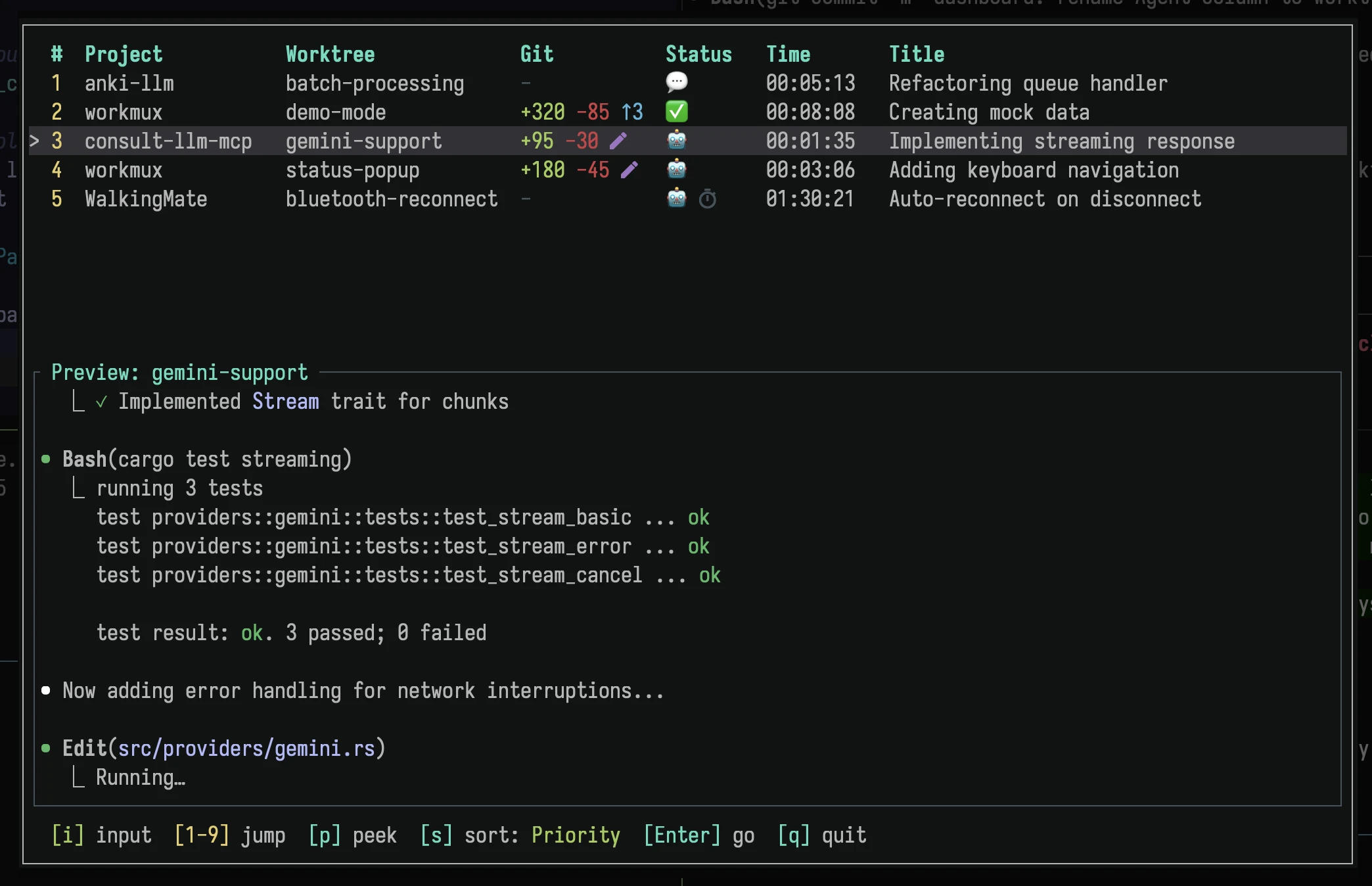
When running agents in multiple worktrees across many projects, it's helpful to have a centralized view of what each agent is doing. The dashboard provides a TUI for monitoring agents, reviewing their changes, staging hunks, and sending commands.
Optional feature
The dashboard is entirely optional. It becomes especially useful when running multiple agents across several projects, but workmux's core workflow works great on its own.
For an always-visible, non-intrusive alternative, see the sidebar.
Setup
Prerequisites
The dashboard requires status tracking hooks to be configured. Without them, no agents will appear.
Add this binding to your ~/.tmux.conf:
bind C-s display-popup -h 30 -w 100 -E "workmux dashboard"Then press prefix + Ctrl-s to open the dashboard as a tmux popup. Feel free to adjust the keybinding and popup dimensions (-h and -w) as needed.
Quick access
Consider binding the dashboard to a key you can press without the tmux prefix, such as Cmd+E or Ctrl+E in your terminal emulator. This makes it easy to check on your agents at any time.
See command reference for CLI options.
Views
The dashboard has two views, toggled with Tab:
- Agents: Shows all running agent panes with their status, git info, and live terminal preview
- Worktrees: Shows all git worktrees with branch, PR status, and agent summary. Press
rto remove a worktree (kills agent, removes worktree, deletes branch).
Keybindings (Agents view)
| Key | Action |
|---|---|
1-9 | Quick jump to agent (closes dashboard) |
Tab | Switch to worktree view |
Bksp | Toggle between current and last agent |
d | View diff (opens WIP view) |
o | Open PR in browser |
O | Open PR checks in browser |
p | Peek at agent (dashboard stays open) |
s | Cycle sort mode |
F | Toggle session filter |
f | Toggle stale filter (show/hide stale) |
i | Enter input mode (type to agent) |
X | Kill selected agent |
R | Sweep (bulk remove merged/gone) |
Ctrl+u | Scroll preview up |
Ctrl+d | Scroll preview down |
+/- | Resize preview pane |
Enter | Go to selected agent (closes dashboard) |
/ | Filter agents by name |
j/k | Navigate up/down |
T | Cycle theme |
: | Open command palette |
q/Esc | Quit |
Ctrl+c | Quit (works from any view) |
Keybindings (Worktrees view)
| Key | Action |
|---|---|
1-9 | Quick jump to worktree index |
Tab | Switch to agents view |
Enter | Jump to worktree (agent or mux window) |
o | Open PR in browser |
O | Open PR checks in browser |
a | Add worktree |
r | Remove worktree |
c | Close mux window (keeps worktree) |
R | Sweep (bulk remove merged/gone) |
s | Cycle sort mode |
p | Switch project |
/ | Filter worktrees by name/branch |
j/k | Navigate up/down |
T | Cycle theme |
: | Open command palette |
q/Esc | Quit |
Ctrl+c | Quit (works from any view) |
Columns
- #: Quick jump key (1-9)
- Project: Project name (from
__worktreespath or directory name) - Agent: Worktree/window name
- Git: Diff stats showing branch changes (dim) and uncommitted changes (bright)
- Status: Agent status icon (🤖 working, 💬 waiting, ✅ done, or "stale")
- Time: Time since last status change
- Title: Claude Code session title (auto-generated summary)
Live preview
The bottom half of the dashboard shows a live preview of the selected agent's terminal output. The preview auto-scrolls to show the latest output, but you can scroll through history with Ctrl+u/Ctrl+d.
Input mode
Press i to enter input mode, which forwards your keystrokes directly to the selected agent's pane. This lets you respond to agent prompts without leaving the dashboard. Press Esc to exit input mode and return to normal navigation.
Sort modes
Press s to cycle through sort modes:
- Priority (default): Waiting > Done > Working > Stale
- Project: Group by project name, then by priority within each project
- Recency: Most recently updated first
- Natural: Original tmux order (by pane creation)
Your sort preference persists in the tmux session.
Session filter
Press F to toggle the session filter. When active, only agents in the current session are shown. This is useful for session-per-project workflows where each session maps to a repository. You can also start the dashboard with --session to default to session filtering. The preference persists across sessions.
Stale filter
Press f to toggle between showing all agents or hiding stale ones. The filter state persists across dashboard sessions within the same tmux server.
Sweep
Press R in either view to open sweep mode, which identifies worktrees ready for cleanup and lets you remove them in bulk. Worktrees are flagged based on these conditions:
- PR merged: The associated pull request has been merged
- PR closed: The pull request was closed without merging
- Upstream gone: The remote branch has been deleted
- Merged locally: The branch is fully merged into the main branch with no upstream tracking
The main worktree is never included.
Clean worktrees are pre-selected and can be toggled with Space. Dirty worktrees (uncommitted changes) are shown greyed out and cannot be selected. Press Enter to remove all selected worktrees, or Esc to cancel.